
Before you start selling any products, you must decide how you want to send your products to customers and how much to charge them for the shipping. You can combine different shipping strategies in your Ecwid store in order to cover costs for all products and all delivery locations.
Different factors can affect the cost of sending your products to the customer. Such as:
- Package weight and dimensions. Shipping carriers like USPS, FedEx, and UPS calculate shipping charges based on the actual weight of the package or its dimensional weight.
- Shipping destination. Your shipping costs will be higher if you offer international shipping in your store.
- Value of shipped products. If you sell high-value products you may want to insure their shipment which will increase shipping costs.
- Delivery times. Some buyers prefer to pay for expedited shipping; this cost is based on where the buyer is located.
You can use online calculators to check how much shipping carriers charge to ship products of different weights and dimensions to different destinations from your location:
UPS rates calculator,
USPS rates calculator,
FedEx rates calculator, etc.
You can offer curb-side / instore pickup to those customers who prefer to purchase online and then pick up the orders themselves.
Making the initial shipping setup in your Ecwid store
Regardless of which shipping options you choose, you should first go through the initial shipping setup:
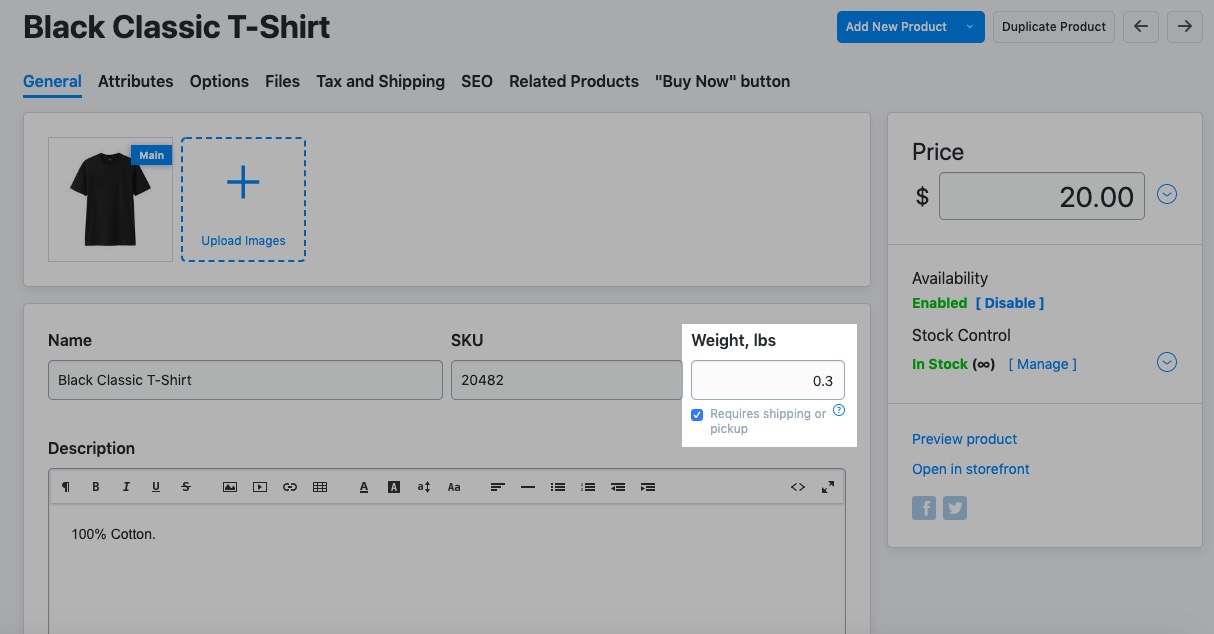
Step 1. Mark products as shippable and enter the product’s weight
You should specify weight and tick the Requires shipping or pickup setting for the products that you are going to ship. You can do this in the product editing pages:
Step 2. Specify your shipping origin (if you use live shipping rates)
The shipping origin address is the location from where you ship your orders. It is used by integrated carriers as a ship-from address when calculating shipping rates in real time. Shipping origin is automatically set as the company address that you entered in your store profile at the initial store set up. Make sure you enter the right address if you are using real-time shipping rates in your store.
If you are shipping products from another place, specify that address as your shipping origin to receive precise shipping quotes from the carrier enabled in your store.
To edit the Shipping Origin address (if it is different from your company address):
- From your Ecwid admin, go to Shipping & Pickup.
- Under the Settings block find the Shipping Origin section.
- Click Change Address.
- Select the option I ship orders from a warehouse or another location and edit the address.
- Click Submit to save the changes.
Step 3. Set up destination zones
Destination zones are the areas where you will ship products. You can offer different shipping methods for customers from different zones, for example, ship via USPS within the continental United States and ship via Fedex to the Hawaiian Islands. See Adding and managing destination zones for detailed instructions on how to create destination zones.
If you’ve decided what shipping strategy to use, you can go ahead and add shipping options in your store. You can set up shipping either globally in the Shipping & Pickup section in your Ecwid admin (e.g. live rates, flat fee, free shipping or custom tables based on subtotals or weights) or you can add product-specific shipping options in the "Tax and Shipping" tab in your product editing pages.
Flat rates
You can charge your customers a flat shipping rate for any order, regardless of quantity. With a flat rate per order, you can charge a single rate to ship all orders to specific locations regardless of how many items are ordered. A flat rate can be a whole amount or a percentage of the order subtotal.
To set up a flat rate per order in your store:
- From your Ecwid admin, go to Shipping & Pickup.
- Click +Add Shipping.
- Select how you ship your goods (by a shipping carrier or a local delivery service) and click Set up.
- In the Flat Rate section, click Set Up Flat Rate.
- Update the name of this shipping method if necessary. Customers will see this name at checkout.
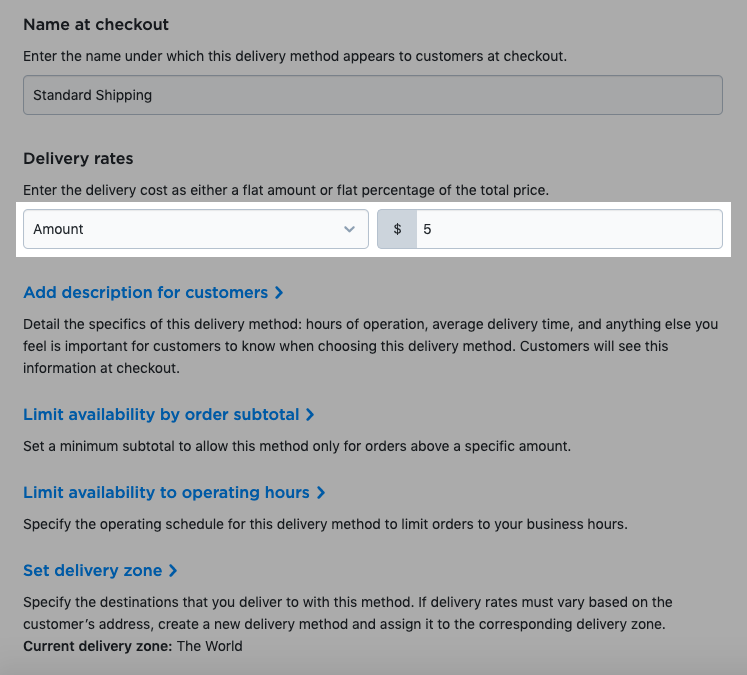
- Select either an Amount or Percent rate and then enter the shipping cost or percentage. Example for a $5 flat shipping:
- Optional: Click Add description for customers and enter the details you want to display at checkout. For example, enter the delivery speed and time it takes for orders to arrive when shipped with this method.
- Optional: Click Limit availability by order subtotal, if you want to offer this shipping method only to customers with orders over a certain sum. Then specify the minimum order subtotal, i.e. the sum of all items in the cart before adding shipping costs and discounts. When this limit is reached, customers will be able to choose this shipping option at checkout.
- (For a local delivery only, optional) Click Limit availability to operating hours if you want this shipping option to be available to customers only on certain days of week or business hours and set the necessary limitations.
- Click Set shipping region to specify the destination to which this flat rate applies. If you leave the default All destinations zone, your flat rate shipping option will be available for all customer addresses.
- Click Save & Finish.
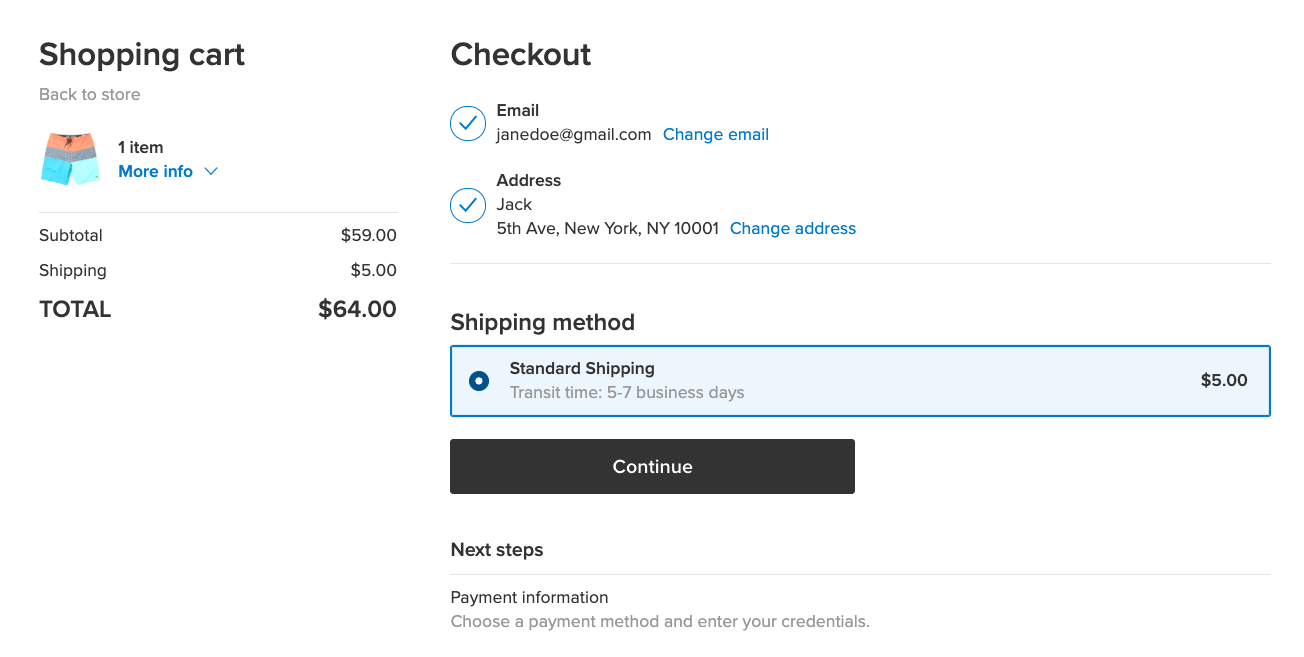
Now the newly configured flat rate will be available at checkout for customers ordering goods to the set location:
Repeat the above steps to set up flat rates for other destination zones if necessary.
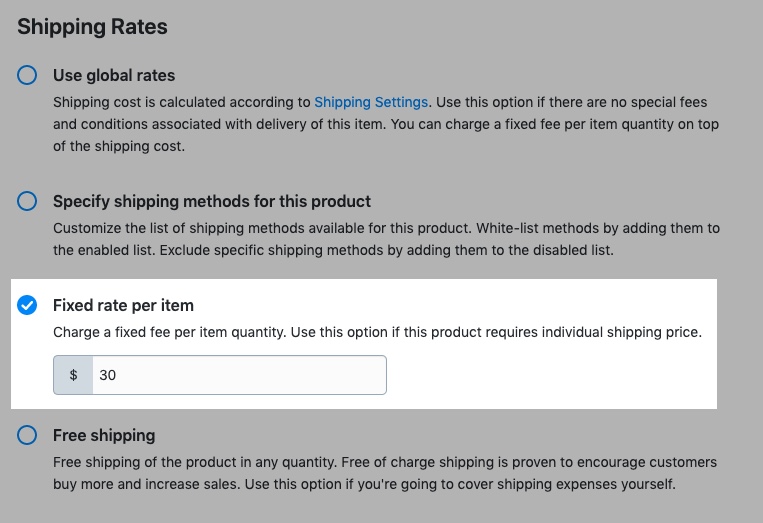
If you want to charge a fixed per-item rate for that product instead of your regular shipping cost: select the Fixed rate per item option and specify what $ amount should be charged for each product item in the cart.
Comments
0 comments
Please sign in to leave a comment.