
There are a few steps you need to follow before setting up the Ascend inventory import inside mBWS.
-
Inside Ascend, you needs to run the following query (if you are unsure how to do this, you will need to contact your Ascend support representative):
SELECT Products.ID,
Products.UPC,
Products.MfgrPartNo,
Products.Quantity as QOH,
Products.Price as MSRP,
[Sale Price] = (
SELECT TOP 1
CAST(
CASE
WHEN OSD.DiscountType = 0
THEN ROUND(OSD.Discount, 2)
WHEN OSD.DiscountType = 1
THEN ROUND((P1.Price * (1 - OSD.Discount / 100)),2)
WHEN OSD.DiscountType = 2
THEN
CASE
WHEN (P1.AvgCost Is Null Or P1.AvgCost = 0)
THEN ROUND((P1.EstCost / (1 - OSD.Discount / 100)),2)
ELSE ROUND((P1.AvgCost / (1 - OSD.Discount / 100)),2)
END
WHEN OSD.DiscountType = 3
THEN
CASE
WHEN (P1.AvgCost Is Null Or P1.AvgCost = 0)
THEN ROUND((P1.EstCost * (OSD.Discount / 100) + P1.EstCost),2)
ELSE ROUND((P1.AvgCost * (OSD.Discount / 100) + P1.AvgCost),2)
END
END As decimal (10,2))
FROM Products P1
LEFT JOIN OnSaleDetails OSD On P1.ID = OSD.ItemID
LEFT JOIN OnSale OS On OSD.OnSaleID = OS.ID
WHERE P1.Hide = 0
AND P1.Quantity > 0
AND OSD.Hide = 0
AND OS.Hide = 0
AND OS.EndDate > GETDATE()
AND P1.ID = Products.ID),
Products.Color,
Products.Size,
Products.Brand,
Products.Description,
CAT.Topic Category
FROM Products
LEFT JOIN Categories CAT ON Products.TopicID = CAT.ID
WHERE Products.Hide = 0
AND Products.eCommerce = 1
AND Products.Quantity > 0
2. Follow the same instructions as on this article (Send inventory and sales data to Specialized using S_Connect – Customer Feedback & Knowledge Base for Ascend RMS ) but with the following details:
Host Address: ftp://room58.space.com:21
Protocol: FTP - File Transfer Protocol
Port: 21
Login: ascend@room58.space
Password: zgkq.p2RlLv~
The delivery settings should then look as follows:
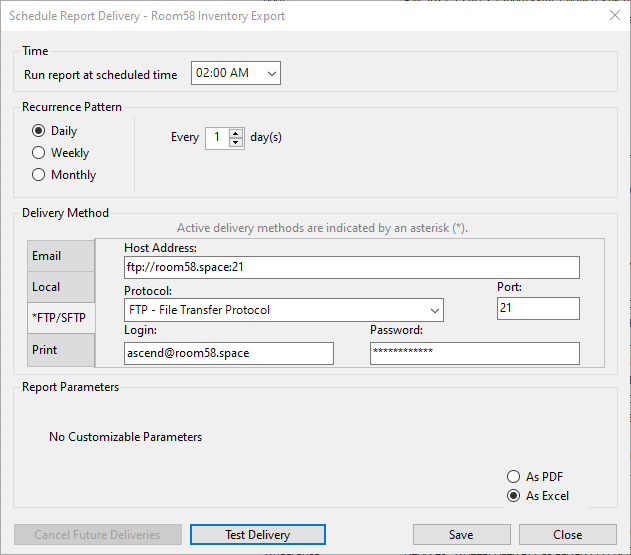
You should then press “Test Delivery” and notify us. We can then check the file has arrived and contains what we need.
Comments
0 comments
Please sign in to leave a comment.