
Creating a billboard for your site has never been easier, Honestly! Don't believe us? Check it out below.
1. Log into the admin panel, select "Homepage" and then "billboards".
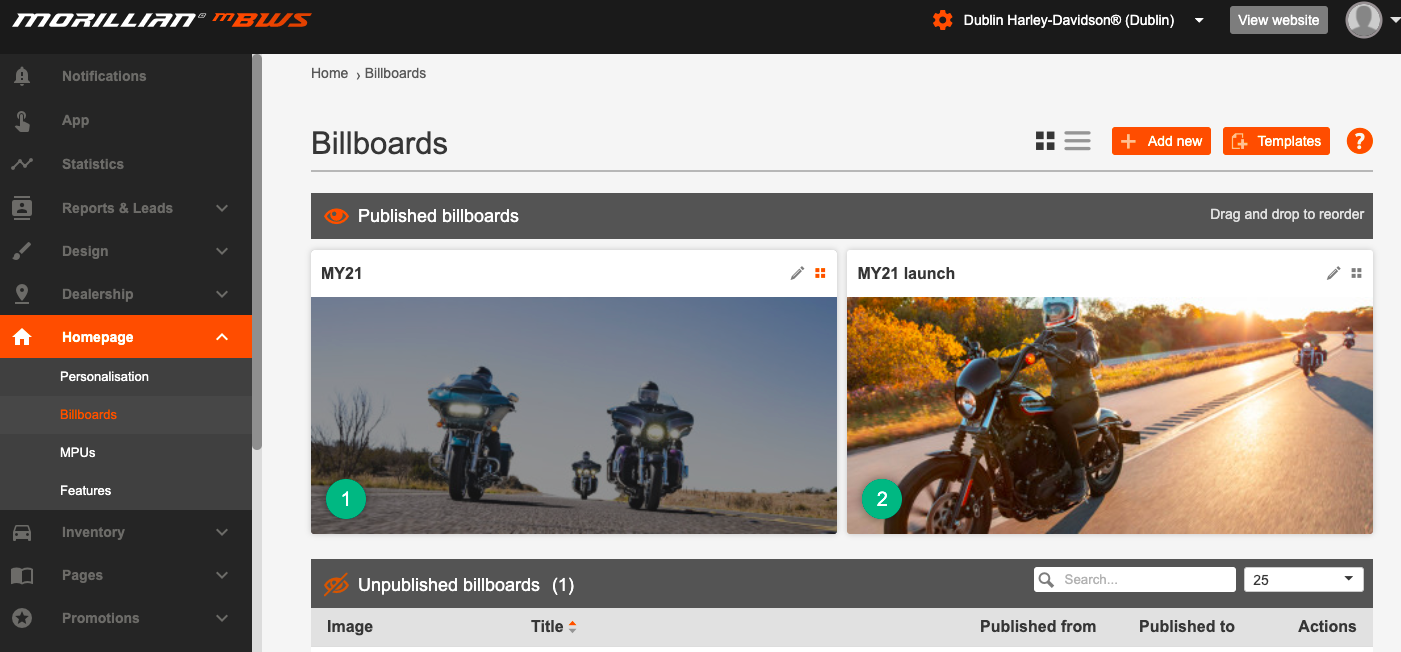
2. In the Billboard Manager menu you can reorder your billboards, unpublish billboards, edit or add new as needed.
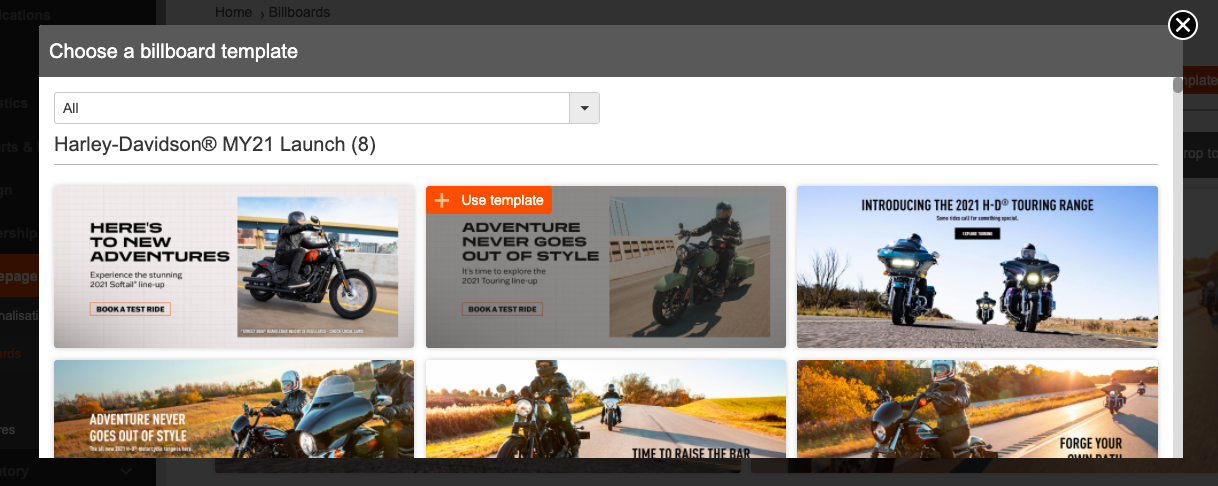
3. To create a new billboard either upload an image from your computer or select an image from the extensive library by selecting "templates". These are updated in line with any new launches, seasonal campaigns and holidays and will ensure your website looks slick and stylish with minimal effort.
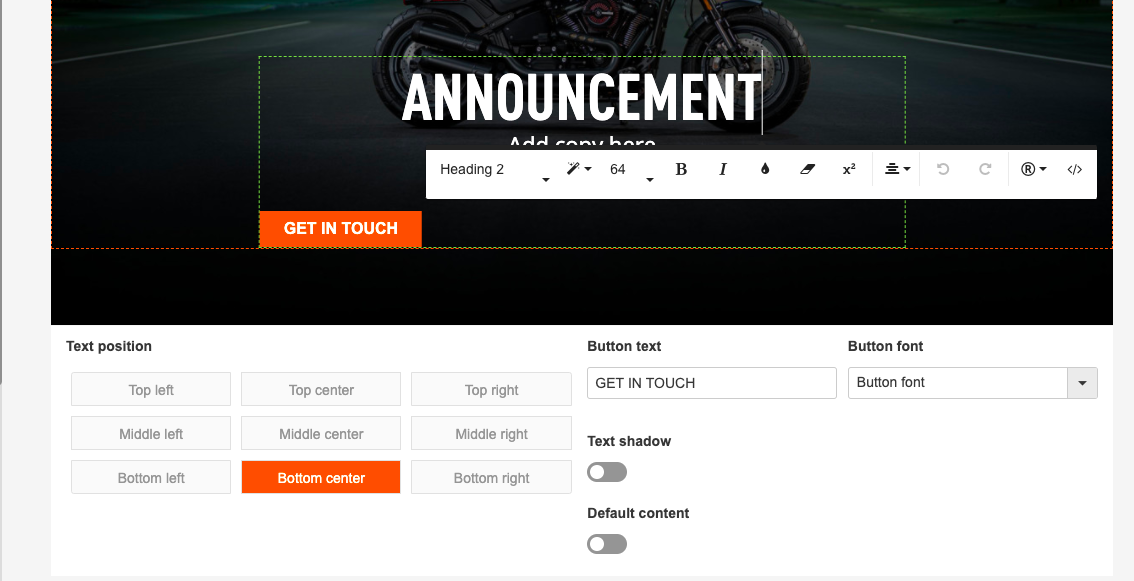
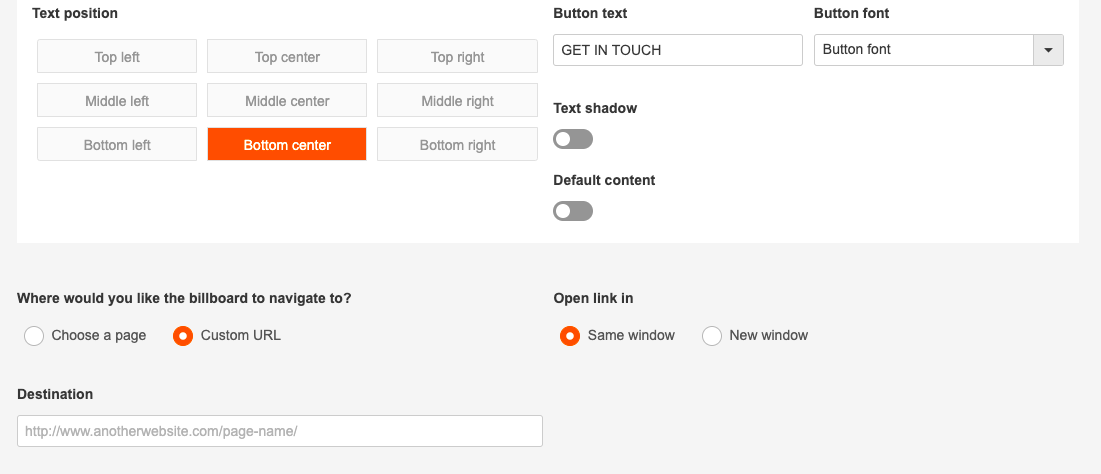
4. You'll now see a preview of how your billboard is going to look, but here's the cool part - you can add text over the image and see a preview live. Forget photoshop this is where billboard dreams are made. Enter the text and format it as you wish; colour, font size and position on the image.
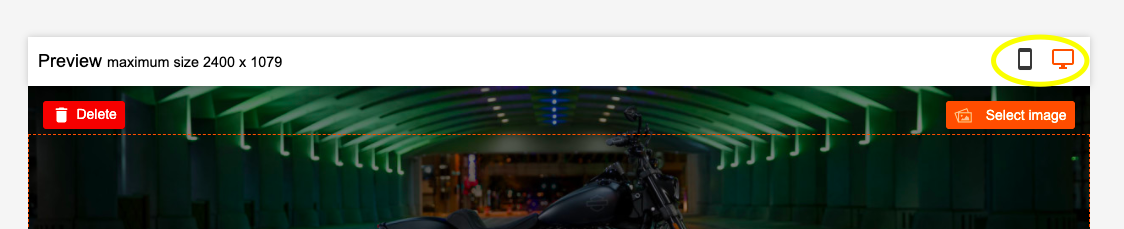
5. Don't stop there, you can then review how the billboard will look on a mobile and, if needed, change the image and text to make it fit perfectly.
6. Once you are happy with the way your billboard looks, it's time to decide where it links to, decide on the text for the button and then link it to either an internal page or an external link.
7. If you have more than one dealership, you can create a billboard once and then assign to all your websites. You can also set publish to and from dates and the system will publish and unpublish without you lifting a finger.
8. Once you're satisfied your billboard hits the mark, hit "publish" and then "save" and you're done!
Comments
0 comments
Please sign in to leave a comment.